


AI Video Creator - Bloom AI
3.846.00 Reviews
App Specs
- Version
- 3.1.1
- Updated On
- License
- Free
- Downloads
- 100,000+
- Developer
- BIVEX
- Categories
- Beauty
- Platform
- Android
Screenshots
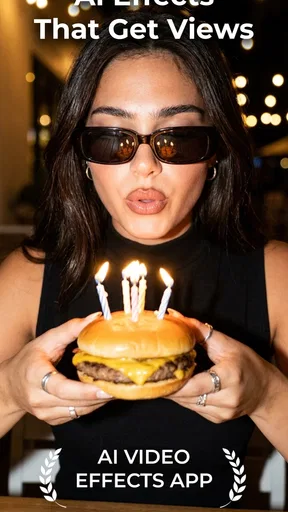
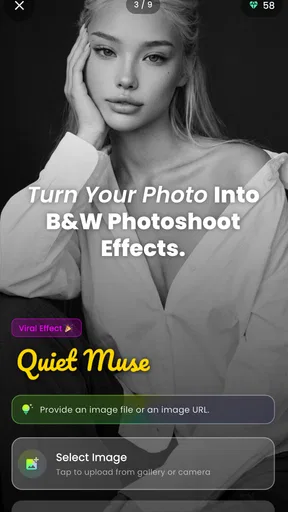
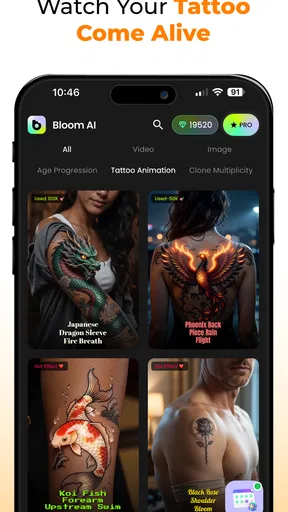
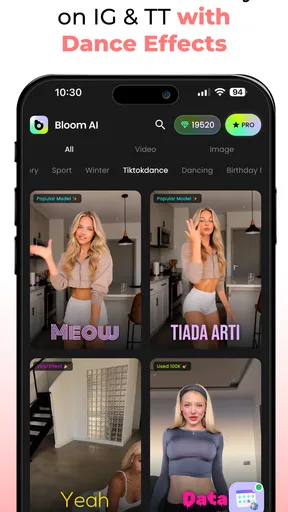
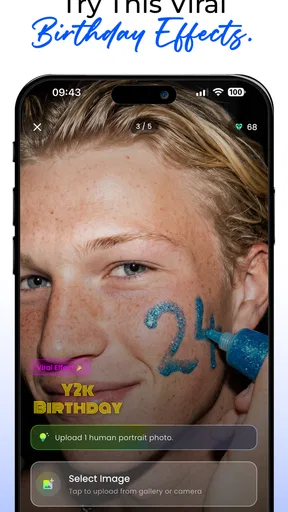
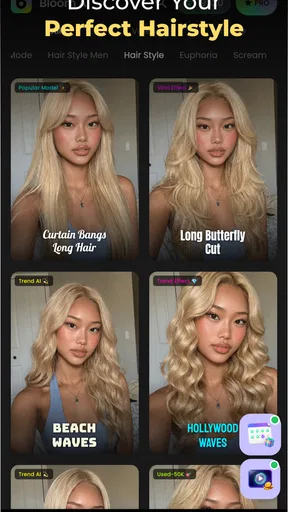
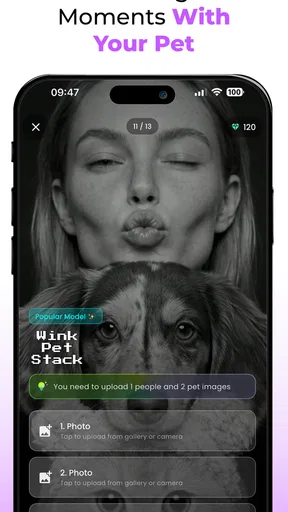
 Analysis by AppCompare
I judge an AI video app by whether it helps me get from a rough idea to a shareable clip without turning the process into another project. AI Video Creator - Bloom AI aims for that quick, effect-led kind of creation, and it may suit people who want their posts to look more polished without learning a full editing suite. My main reservation is that the appeal of AI effects depends on how much creative control you want: fast results can be useful, but they are not always a substitute for shaping every cut yourself.
What to expect before you start
Bloom AI is a free beauty app from BIVEX, released on August 6, 2025. It has a 4.3 average from around 1,300 ratings and more than 10,000 installs, which suggests that people are giving it a try, though those numbers alone cannot tell me whether its style will fit your taste. It is rated for everyone, runs on Android 6.0 and up, and its current version is 2.0.17.
The free entry point makes it easier to experiment before deciding whether the app belongs in your regular workflow. There are in-app purchases, with items ranging from $7.99 to $199.99, so I would check what an option includes and its cost before committing. If you only want to test a simple effect or make an occasional short clip, it makes sense to begin with what is available without paying rather than assuming every useful tool is included.
Where the creative appeal lies
The idea is appealing for a specific reason: AI effects can give a short video a more deliberate visual identity without asking you to build that look frame by frame. For a beauty creator, that can be useful when a straightforward camera clip feels too plain for a post, but a complicated editor would slow down the job. I would treat the effects as a starting point, then decide whether the result still looks like something I would actually share.
A practical way to judge the app is to try the same source clip with more than one effect, if the available choices allow it, and compare the results on the phone screen where viewers are likely to see them. A look that seems striking while editing may distract from the subject once the video is small. Keeping the clip focused and choosing an effect that supports its purpose is usually more convincing than stacking visual changes just because they are available.
For example, imagine I have a few seconds of a finished makeup look before heading out. I want a quick post, not a full tutorial with carefully edited audio and multiple camera angles. Bloom AI’s AI-effect approach is worth trying in that situation: I can see whether an effect gives the clip enough character to share, then stop there if the result works. If the effect changes the mood too much or makes the look harder to see, an ordinary edit is the better choice.
How it fits beside familiar editing options
Compared with a traditional mobile video editor, an AI-effects app is most appealing when the desired outcome is a quick transformation rather than precise control over a timeline. A conventional editor is generally the stronger choice when I need to set exact cut points, balance several audio elements, or make a sequence match a particular beat. Bloom AI makes more sense when I want to explore a visual treatment without first learning a larger set of editing controls.
Worth Reading Before You Choose

Flipboard Shows What News Apps Must Do Beyond the Feed

Switching to Android Auto Means Rethinking Your Driving Routine

Google Calendar Makes a Crowded Week Easier to Manage

Ludo King Makes the Most of the Minutes Between Plans

Baby Panda World Brings Quick Play to Modern Phones, but Its Game Library Feels Busy

ESPN’s Live Game View Makes Following Close Games Easier
It also sits differently from using a phone’s built-in camera filters. A camera filter is convenient when I know the look I want before recording; an effect-focused video app is more useful when I want to experiment with the appearance of existing content. The trade-off is another step in the process: I have to choose a clip, try the treatment, and decide whether the extra styling improves it. If a simple filter already gives me the result I want, moving to another app may not be worth the effort.
First Impressions and Setup
When I first opened Bloom AI, I was greeted by a sleek, intuitive interface. The app doesn't waste time with unnecessary fluff. Instead, it gets straight to the point, making it easy for anyone to dive right in. Setting it up took me no more than a couple of minutes. Just download, install, and boom – you're ready to start creating.
One cool thing is that it offers a quick tutorial for first-timers. It’s like having a friendly guide showing you around, without feeling like you're stuck in a boring lecture. And trust me, having that guidance at the beginning is a lifesaver, especially if you're new to video editing.
Features that Stand Out
Once you start exploring, you'll notice that Bloom AI is packed with features that are both powerful and easy to use. Let me break down some of the highlights:
- AI-Powered Editing: This is where the magic happens. The AI analyzes your clips and suggests edits, transitions, and effects that make your video pop. It's like having a personal editor who never sleeps.
- Templates Galore: If you’re someone who loves a bit of structure, you'll appreciate the variety of templates. Whether you're creating a travel vlog or a business promo, there's something for every occasion.
- Voiceover Magic: Adding voiceovers is a breeze. The app's AI can even generate natural-sounding voiceovers if you’re not keen on using your own voice. I tried it out, and it sounds surprisingly human-like!
User Experience and Performance
Using Bloom AI feels smooth and responsive. I didn't encounter any lag, which is a common issue with other video apps. The transitions are seamless, and exporting the final product is quicker than I expected. The app doesn’t feel like it’s hogging your phone’s resources, which is always a plus.
One aspect I particularly liked is the collaborative feature. You can invite friends or colleagues to edit the video with you. It’s perfect for group projects or when you need a second opinion on your work.
Room for Improvement?
No app is perfect, right? While Bloom AI offers a lot, there are a couple of areas where it could improve. For instance, the music library is somewhat limited. If you’re picky about your background tunes, you might find yourself wishing for more variety.
Additionally, the app occasionally struggles with longer videos, especially those over 10 minutes. It’s not a deal-breaker, but something to keep in mind if you’re planning to make extensive content.
Choosing the right kind of project
The strongest fit is someone who makes short, visual posts and values speed over fine-grained editing. A beauty creator preparing a quick before-and-after, a small business owner refreshing a product clip, or a friend making a playful birthday video may appreciate having effects and templates close at hand. In those cases, I would keep the source footage brief and clearly framed so the styling has a defined subject to work with.
I would be more cautious about using it as the only tool for a tutorial, interview, or longer story. Those projects often need deliberate pacing, readable captions, careful sound levels, and edits that preserve important details. Even if an AI treatment looks attractive, it cannot decide which explanation matters most or whether a cut makes the story clearer. I would use a dedicated editor for that kind of work and bring Bloom AI in only if a specific visual effect adds something useful.
A workflow that avoids wasted effort
One small but helpful habit is to choose the purpose of the clip before browsing effects. If I am showing a makeup detail, I want the result to keep attention on the face and the product; if I am making a fun mood piece, I can afford a more noticeable transformation. That simple decision makes it easier to reject effects that look impressive on their own but compete with the subject.
I would also keep an untouched copy of the original video until I am happy with the finished version. That gives me a fallback if an effect changes the look in a way I notice only after watching the export, and it lets me compare the final clip fairly. For a post that matters, checking the finished video with sound on and off is worthwhile: music or voiceover can change whether the visual treatment feels cohesive.
Another useful trade-off to consider is consistency. If I am making several posts for the same account, using a different strong effect each time can make the collection feel scattered. I would test a look on one clip first, then reuse a similar visual direction only if it suits the next subject. That is less about chasing a signature style and more about making sure each effect serves the content rather than becoming the content.
What may cause friction
The purchase range is wide enough that I would approach paid options carefully, especially if I only make videos now and then. Before buying anything, I would identify the specific tool or effect I need and decide whether it solves a recurring problem. A one-off experiment is a weaker reason to spend than a feature I expect to use repeatedly, and the free starting point is useful for testing whether the app’s overall creative approach clicks with me.
The music limitation matters most when the soundtrack carries the emotion of the clip. If I already have a particular song or need more control over audio, I would prepare the edit in a tool better suited to sound rather than forcing the whole project into one app. Likewise, the reported difficulty with longer videos makes short-form work the safer fit; breaking a long project into pieces may add hassle instead of saving time.
There is also a difference between a tool that helps generate a look and one that guarantees a good video. Strong source footage still matters: a steady shot, clear subject, and useful lighting give any effect a better chance of looking intentional. I would not expect an AI treatment to rescue a clip where the subject is hard to see or the framing is confusing. That is an important reason to test the same effect on a clean, simple clip before judging whether it suits a more complicated one.
Who I would recommend it to
I would recommend trying Bloom AI if you are curious about AI-led visual effects, mostly make short clips, and want a guided way to experiment rather than a full editing workspace. It is especially relevant to casual beauty content, quick social posts, and small creative projects where a distinctive look matters more than exact timeline control. The approachable setup and tutorial are helpful if editing apps usually feel intimidating.
I would skip it, or use it only alongside another editor, if your work depends on precise audio, long-form structure, detailed manual adjustments, or a carefully controlled brand look. A creator who needs dependable control over every cut will likely be happier in a traditional editor. Someone who only wants a subtle color adjustment may find the simpler tools already on their phone more direct.
Final Thoughts
All in all, AI Video Creator - Bloom AI is a fantastic tool for both beginners and seasoned video creators. It combines ease of use with powerful features, making video creation accessible to everyone. Whether you're crafting a personal project or working on something more professional, Bloom AI has your back.
If you're curious to try it out, you can find the download link on our website. Dive in and see what amazing videos you can create with a little help from AI!
Pros
- Intuitive interface for easy navigation.
- Wide range of templates available.
- Fast video rendering times.
- Seamless integration with social media.
- Offers high-quality video output.
Cons
- Limited customization options for templates.
- Requires a stable internet connection.
- Some features locked behind a paywall.
- Occasional lag on older devices.
- No offline editing capabilities.
FAQs for AI Video Creator - Bloom AI
What features does AI Video Creator - Bloom AI offer?
AI Video Creator - Bloom AI provides a variety of features including automated video editing, customizable templates, voiceover capabilities, and AI-driven enhancements. It allows users to create professional-quality videos with minimal effort, making it ideal for both beginners and experienced creators looking for efficiency and creativity.
Is AI Video Creator - Bloom AI suitable for beginners?
Yes, AI Video Creator - Bloom AI is designed with user-friendliness in mind. Its intuitive interface and automated features make it easy for beginners to create high-quality videos without needing prior experience in video editing. Templates and guided tutorials further simplify the learning process.
Does AI Video Creator - Bloom AI support multiple video formats?
AI Video Creator - Bloom AI supports a wide range of video formats, allowing users to import and export their projects in the format that best suits their needs. This flexibility ensures compatibility with various devices and platforms, making it easier to share and upload content.
Are there any in-app purchases or subscriptions within AI Video Creator - Bloom AI?
While AI Video Creator - Bloom AI offers a free version with basic features, it also includes in-app purchases and subscription plans that unlock premium features. These may include additional templates, advanced editing tools, and enhanced AI functionalities, providing more options for serious creators.
How does AI Video Creator - Bloom AI ensure video quality?
AI Video Creator - Bloom AI utilizes advanced AI algorithms to enhance video quality automatically. It adjusts lighting, color, and sound to optimize the final output. Users can also manually tweak settings to ensure the highest quality, catering to both automatic and custom preferences.


